React Native Comes to Meta Quest


React Native has always focused on helping developers reuse knowledge across platforms. What started with Android and iOS has steadily expanded to Apple TV, Windows, macOS, and even the web with react-strict-dom. In 2021, the Many Platform Vision post outlined a future where React Native could adapt to new devices and form factors without fragmenting the ecosystem.
At React Conf 2025, we took another step toward that vision by announcing official React Native support for Meta Quest devices. This post focuses on how to get started with React Native on Meta Quest, what works today, and how developers can build and ship VR apps using familiar tools and patterns.
Highlights
- React Native on Meta Quest
- Getting started on Meta Quest
- Development builds and native features
- Platform-specific setup and differences from mobile
- Design and UX considerations for VR
React Native on Meta Quest
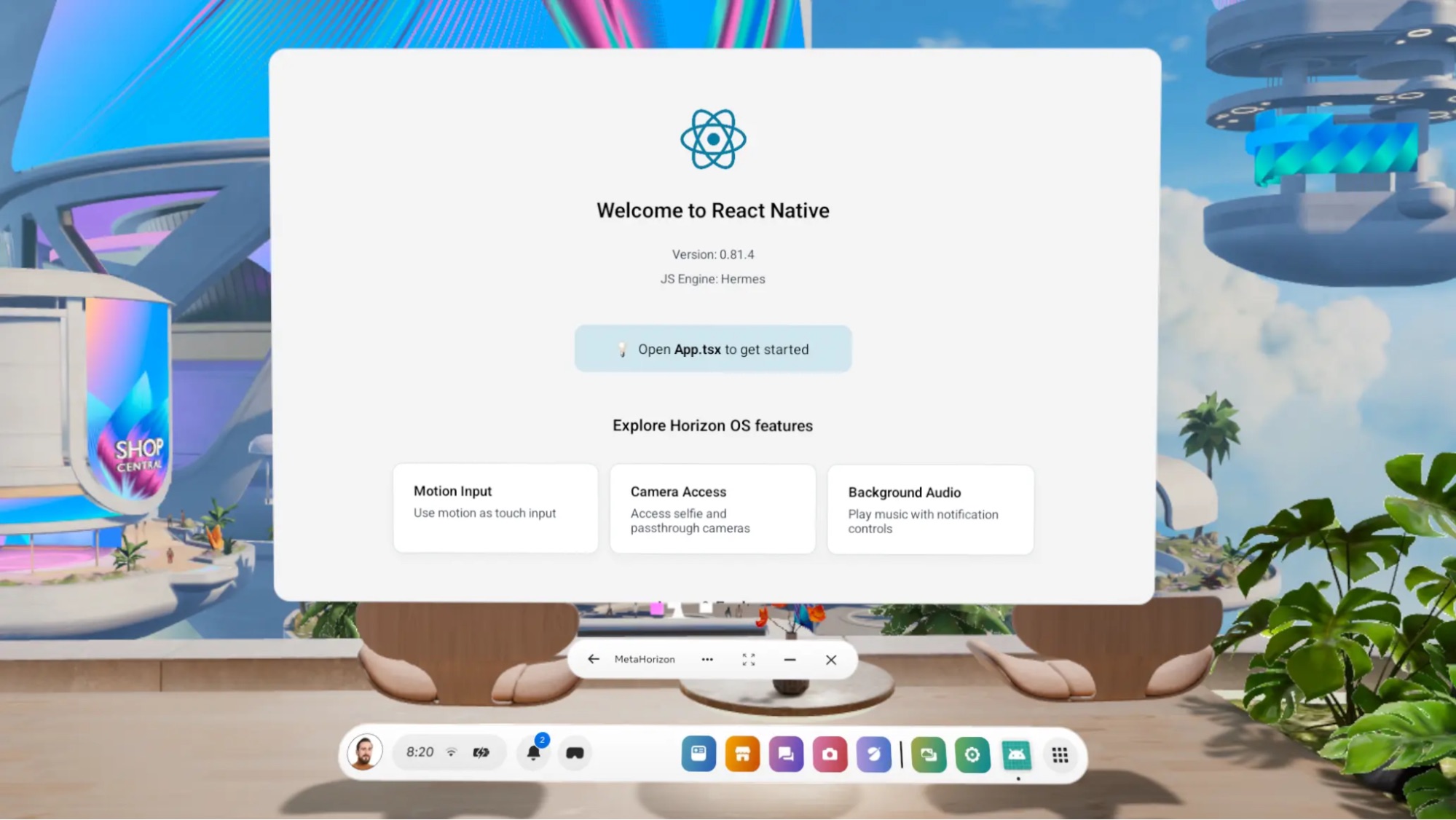
React Native apps running on Meta Quest.
Meta Quest devices run Meta Horizon OS, an Android-based operating system. From a React Native perspective, this means all of the existing Android tooling, build systems, and debugging workflows work with minimal changes. For developers already building React Native apps on Android, much of existing development model carries over.
This aligns with how React Native has expanded to other Android-based environments over time. Rather than introducing a new runtime or development model, Meta Quest builds on the same Android foundation and integrates with React Native's existing abstractions. This allows platform-specific capabilities to be added without fragmenting the framework or requiring a separate approach to development.
Getting started on Meta Quest
This section walks through the basic development workflow on Meta Quest, starting with Expo Go and moving toward development builds and platform-specific configuration.
Step-by-step: Run an Expo app on Meta Quest
To run an Expo app on Meta Quest, start a standard Expo project, launch the dev server, and open the app through Expo Go on the headset. Beyond a few Meta Horizon OS-specific requirements, the workflow is the same as on Android.
-
Install Expo Go on the headset
Expo Go is available on the Meta Horizon Store and can be installed directly on Meta Quest devices. It is used for rapid iteration during development.
-
Create (or use) an Expo project
If you're starting fresh, create a standard Expo app. No special template is required.
npx create-expo-app@latest my-quest-app
cd my-quest-app -
Start the dev server
npx expo start -
Connect with Quest using Expo Go
Open Expo Go on the headset and scan the QR code displayed by the Expo CLI with the headset camera. The application launches in a new window on the device, allowing live reloading and fast iteration.
-
Iterate as usual
Code changes are reflected immediately on the device, following the same edit-refresh cycle used on Android and iOS.
Development builds and native features
Expo Go is sufficient for early development and UI work. When access to native modules or deeper platform integration is required, development builds are used instead. These builds follow the standard Expo development build workflow and run directly on the Quest device.
Platform-specific setup and differences from mobile
While the overall workflow remains the same, Meta Quest requires a small set of platform-specific adjustments.
Project configuration for Meta Horizon OS
Meta Quest applications must meet specific requirements to run correctly and to be eligible for store submission. These include platform-specific Android configuration, product flavors, and application metadata.
Expo provides a plugin for Meta Horizon OS that applies these requirements at build time. Using this plugin ensures the project configuration aligns with Meta Quest expectations without manual modification of native files.
Install expo-horizon-core and add it to app.json or app.config.js:
{
  "expo": {
    "plugins": [
      [
        "expo-horizon-core",
        {
          "horizonAppId": "your-horizon-app-id",
          "defaultHeight": "640dp",
          "defaultWidth": "1024dp",
          "supportedDevices": "quest2|quest3|quest3s",
          "disableVrHeadtracking": false,
          "allowBackup": false
        }
      ]
    ]
  }
}
Also, change the orientation value:
{
   ...
   "orientation": "default",
   ...
}
Update package.json with Quest-specific scripts:
{
  "scripts": {
    "android": "expo run:android --variant mobileDebug",
    "quest": "expo run:android --variant questDebug",
    "android:release": "expo run:android --variant mobileRelease",
    "quest:release": "expo run:android --variant questRelease"
  }
}
Using React Native without Expo
Expo provides the easiest way to get started with React Native on Meta Quest. If you prefer to build without a framework, you can also apply the required Meta Horizon OS configuration directly in your Android project.
At a minimum, this includes:
- Creating a Meta Quest-specific build flavor in
android/app/build.gradle - Setting the
horizonAppId - Defining a default panel size in the Android manifest
- Declaring supported devices (for example:
quest2|quest3|quest3s) - Removing prohibited permissions
- Adjusting the minimum supported Android SDK version
- Adding runtime checks such as
isHorizonDevice()andisHorizonBuild()
To understand the full set of changes, you can inspect the expo-horizon-core plugin implementation and replicate the same configuration manually.
Android without Google Play Services
Meta Horizon OS is built on Android Open Source Project (AOSP), which provides the core Android platform without Google's proprietary services. From a development perspective, this means applications run on standard Android APIs but do not have access to Google Mobile Services such as Play Services or Play Store–specific integrations.
When targeting Meta Quest, applications should be designed to avoid direct dependencies on Google services or to provide platform-specific alternatives where needed.
A list of unsupported dependencies is available in the Meta Horizon OS documentation.
Permissions and device capabilities
Some Android permissions and hardware assumptions common on mobile devices do not apply to VR headsets. Cellular features (e.g. SMS), certain sensors (like GPS), and restricted permissions are either unavailable or prohibited. Projects must explicitly account for these differences during setup.
Evaluating library compatibility
Most React Native libraries work on Meta Quest, but compatibility depends on the assumptions a library makes about the underlying platform. In particular, libraries may rely on mobile-only hardware, touch input, or services that are not available on Horizon OS.
As a general guideline:
- Libraries that are self-contained and rely only on standard React Native and Android APIs typically work without changes.
- Libraries that assume touch-only input, mobile-only hardware, or Google Mobile Services require adaptation or conditional usage.
- Libraries that depend on restricted permissions or unavailable device capabilities are not supported.
For some common use cases, such as location and notifications, Expo provides drop-in replacements for Meta Horizon OS. Other libraries may work as-is or require platform-specific handling depending on their dependencies.
Platform-aware code paths
Applications targeting both Meta Quest and other platforms should guard platform-specific behavior. Meta Horizon OS provides runtime utilities to detect whether the app is running on a Quest device, allowing unsupported features to be disabled or replaced when necessary.
import ExpoHorizon from 'expo-horizon-core';

// Check if running on a Horizon device
if (ExpoHorizon.isHorizonDevice) {
  console.log('Running on Meta Horizon OS!');
}

// Check if this is a Horizon build
if (ExpoHorizon.isHorizonBuild) {
  console.log('This is a Horizon build variant');
}

// Access the Horizon App ID
const appId = ExpoHorizon.horizonAppId;
console.log('Horizon App ID:', appId ?? 'Not configured');
Design and UX considerations for VR
Designing for a head-mounted display introduces constraints that differ from touch-based mobile devices. Interfaces are viewed at a distance, rendered in space, and interacted with using a wider range of input methods.
UI elements generally require larger hit targets, increased spacing, and typography that remains readable across varying distances. These challenges are similar to those encountered on desktop, tablets, and foldable devices, where applications run in resizable windows and layouts must adapt dynamically.
One of the main differences between Meta Quest and Android mobile is input. Instead of relying primarily on touch, Meta Quest applications are commonly controlled through controllers, hand tracking, and optionally mouse and keyboard. Controllers behave more like a pointer device, which introduces interaction patterns that are closer to web and desktop UIs, including hover and focus-based navigation.
React Native's event system and component model can support these interaction patterns, but applications should avoid touch-only assumptions and ensure that UI elements provide clear focus states and predictable navigation when controlled through pointing devices.
Together, these considerations favor responsive layouts and input-agnostic interactions. React Native's layout system and component model provide a solid foundation for building comfortable and usable VR interfaces.
For more details, check out the official design guidelines.
Examples and references
Reference project
Reference project with all the setup used in this article
Callstack Meta Horizon OS showcase app from React Conf
Learn more
- Official Meta Quest documentation
- React Native Developer's Guide to Meta Horizon OS (ebook)
- How to Add Meta Quest Support to Your Expo Development Builds (article)
- Bringing React Native to VR on Meta Quest (podcast)
- React Native on Meta Quest: What We Learned About Building for VR (live stream)
- Getting started with Meta Horizon Development using Expo
- Feedback channel for platform evolution
Acknowledgements
Bringing React Native to new platforms takes more than code. We're grateful to everyone who contributed their time, feedback, and support along the way.